Showing posts with label Gmail. Show all posts

Tuesday, 17 September 2013

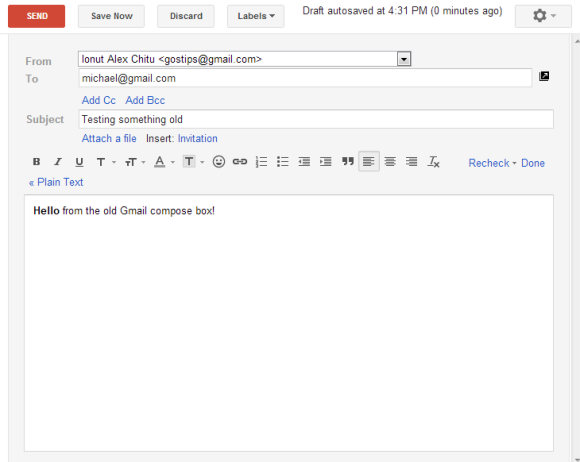
Gmail's Old Compose Interface, Still Available

A lot of people complained about Gmail's new compose interface. Google addressed some of the issues with the "full-screen" mode, but there are still people who dislike the new UI.

If you want to go back to the old interface, there's a Chrome extension that does this: Retro Compose for Gmail. I rarely recommend third-party apps that change Gmail, especially if they're not from a reliable company or developer. I checked the extension's source code and I was surprised to see how it works: it changes your browser's user-agent to IE8's user-agent, but only when loading Gmail. As Google says, "you won't be able to try the new compose experience if you're using Internet Explorer 8". I'm not sure why the extension is not restricted to mail.google.com.


I tried to manually change the user-agent in Chrome and Firefox, but Gmail redirected me to this page:
"Gmail requires ActiveX controls to be enabled". Pressing F12 in IE10 and switching to "Browser mode: IE8" worked.

Obviously, this is a temporary workaround. At some point, Google will stop supporting Internet Explorer 8 and this will no longer work. It's a better idea to get used to the new interface.

Update: Here's a similar Chrome extension that doesn't have a button and has better permissions.

{ Thanks, 翔美咲. }

Tuesday, 10 September 2013

Better Gmail for Feature Phones

There are still a lot of people who use feature phones and Google decided to improve the Gmail interface for these phones. The new version is closer to the smartphone UI, but it doesn't use AJAX, so you have to load a new page every time you perform an action.

"You'll get a number of improvements that reduce the number of button presses required to read, reply and compose emails. For example, you can reply directly to a message from the thread view, you can choose to move to the previous or next conversation, and much more," explains Google.


Gmail used to have a Java app for feature phones, but this is no longer available, at least not officially. Probably the best option to read your messages on a feature phone is to install Opera Mini and use the mobile Gmail site. Speaking of Opera Mini, you'll get the same "feature phone" Gmail interface even if you use an iPhone or an Android phone.

Thursday, 5 September 2013

Gmail's Option for Excluding Chats from Search Results

Gmail's advanced search box has a new option: "don't include chats". If you click the checkbox, Gmail will append to your query: "-in:chats".


To see the advanced search box, click the small arrow icon from the Gmail search box. It's an easy way to use powerful Gmail features if you don't want to manually add operators like from:, to: or has: to your searches. You can also create filters.

Wednesday, 28 August 2013

Better Photo Attachments in Gmail's iOS App

The latest version of the Gmail app for iOS added a better way to open photo attachments. Until now, you had to tap each photo to open it using the app's internal browser and go back to the message.


Now you can tap a photo attachment and use swipes to go to the next or previous image, just like in the built-in Photos app.


The "print" link is no longer displayed next to the thumbnail, but it's still available in the actions menu. For some reason, filenames are no longer included.


Another new feature: "when selecting a Google Drive file or Google+ link you'll now go directly to the app if it's installed. This can be turned off using the in-app settings."

{ via +Gmail }

Use Gmail's New Compose Interface for Replies

When Gmail launched the new compose interface, I wondered why the interface for replying to other messages is different. By default, when you reply to a message or you forward a message, Gmail shows the rich-text editor below the message, just like before.

There are a few ways to make the reply box look like the compose box, so you can open other messages or use Gmail's search feature while replying to a mail.

1. Shift-click the "reply" link or the entire box that includes the message "Click here to Reply or Forward". You can also Shift+click "forward" to open the forwarded message in a pop-out box.


2. Use keyboard shortcuts: Shift+r to reply in a pop-out box, Shift+a to reply to all, Shift+f to forward in a pop-out box.

3. If you've already writing the reply, click the arrow above your reply and pick "Pop out reply".


To go back to the regular interface, minimize the compose box, find this message "You are currently editing your reply in a separate window" and click "Show your draft here."

Tuesday, 13 August 2013

The Old Gmail Compose Interface, No Longer Available

If you're still using Gmail's old compose interface, you should switch to the new interface. In a few days, the old compose UI will no longer be available, so it's a good idea to learn more about the new UI and try to adapt.


The new compose box has been launched in October 2012, so it's not that new anymore. Google added some new features since then: inserting emoticons and event invitations, adding labels to outgoing messages and a full-screen mode you can set as default. The full-screen mode is closer to the old interface and it's consistent with the mobile interface.


"A few weeks ago we added a full-screen option to the new compose. Now that that option is available, we're saying farewell to the old compose and switching everyone to the new compose over the next few days. The new compose opens drafts as a minimizable window so you can write multiple drafts at once, keep an eye on incoming email, adds support for inline images and much more. If you prefer a full-screen compose experience, you can click on the expand button in the top right of the new compose window to switch to full-screen and then set it as the default by selecting Default to full-screen in the more options menu in the bottom right," explains Google.

I'm sure that a lot of people will complain and say that the old interface is better. I've used the new compose box ever since it was released and I think it's great. You can use other Gmail features while composing a message, you can write multiple messages and there aren't many links and buttons that get in the way. I've briefly switched to the old compose experience and I was surprised to see how cluttered it was: "add cc", "add bcc", "insert invitation", "check spelling", a lot of rich-text editing buttons. It looked like a document editor, not like a communication software. This quote sums up everything that's importat about the new compose layout: "You can now write messages in a cleaner, simpler experience that puts the focus on your message itself, not all the features around it."

Mobile Gmail Enhances YouTube Links

Gmail's mobile site has a cool feature that adds video titles to all the YouTube links from a message. They're still links, but you know more about the videos before clicking them.

Here's an example from Gmail's mobile web app in Chrome for Android:


This also works in Gmail's iOS app and Gmail's mobile web app in other Android/iOS browsers. The message from this screenshot only included a link to a YouTube video, with no special anchor text.

Friday, 19 July 2013

Full-screen Gmail Compose Box

There are plenty of shortcuts for opening Gmail's compose box in a new tab or a new window. Not many people use keyboard shortcuts and opening the box in a new page is awkward, so Google decided to add an inline full-screen option.


It's not exactly full-screen, it's more like a maximized box that still lets you see your labels and your chat contacts. You can manually enable the "full-screen" mode every time you want to use it or set is as the default option.

"When this option is enabled, the compose window is centered in your inbox and expands to fit on your screen. In addition, the formatting toolbar is on by default. You can click on the expand button in the top right to switch to full-screen or set full-screen as the default by selecting Default to full-screen in the more options menu in the bottom right," informs Google.

There's a help center article that provides more information:

"Compose messages in a window that's right for you. The default is a small compose window that's great for checking other emails as you type and getting things done quickly. If you prefer a larger window, you can switch to full-screen when you need it, or set full-screen as default."

It turns out that the new expand button for the full-screen mode replaces the pop-out button, which opened the compose box in a new window. To open the box in a new window, you now need to shift-click the expand button.

The full-screen mode also works when you reply to a message, but it's more cumbersome to use. "To compose in a larger window, click the Recipient arrow next to the recipient's name and select Pop out reply. Once you've popped out the reply, click the expand icon expand to compose in full-screen."

As usual, this feature is gradually rolling out to all Gmail accounts, so check back later if you don't see it right away. Obviously, this only works in the new compose interface.

Wednesday, 10 July 2013

Export Google Latitude Friends

Google Latitude has been discontinued and a help center article offers more information about this. Unfortunately, there's something inaccurate: "you can't export your friend information out of Latitude".

Well, you can export your Latitude friends because they're added to a hidden Gmail group. Here's how to do that:

1. go to this Google Contacts page

2. select all contacts

3. click "More", then "Export" and click the "Export" button. You'll get a CSV file with all your Latitude friends.


4. (optional) import the contacts to Google+ and use location sharing - Google's Latitude replacement. Go to the People section in Google+, click "connect services" in the left sidebar, select "open address book" and pick the CSV file you've exported. You'll get a list of people you can add to a new Google+ circle (let's call it Latitude). Enable location sharing at the bottom of this page and restrict it to the circle you've created: pick "Custom" and select the Latitude circle. Unfortunately, Google only shows location data on profile pages and in the Locations section of the Google+ app for Android, but that may change in the future.


"Google Latitude will be retired on August 9th, 2013. Products being retired include Google Latitude in Google Maps for Android, Latitude for iPhone, the Latitude API, the public badge, the iGoogle Gadget, and the Latitude website at maps.google.com/latitude. We'll delete your list of friends on Latitude. You won't be able to see or manage friends. Any existing friends will no longer see your location in Google Maps for mobile on Android, Latitude for iPhone, the public badge, the iGoogle Gadget, and the Latitude website at maps.google.com/latitude, if you continue to use these products," says Google.

Location History will continue to be available, since it's used by Google Maps, Google Earth and Google Now. "Google Location History is an opt-in feature that allows you to store your past Google location history and see it on a Google Map or in Google Earth. Your Location History is visible only to you." Location Reporting will also be available, since it "allows Google to periodically store and use your device's most recent location data in connection with your Google Account".
Tuesday, 9 July 2013

Gmail Build Info

Desktop apps are not the only ones that have version numbers, build information and various data that belongs in an "about" page. Web apps also have all of these, but usually only developers can see them.

Here's the build info displayed for the mobile Gmail web app in Chrome. It's probably helpful for debugging the app and only available internally.


"Build At: grapebot@grapebot-cbf-9.cbf.corp.google.com:/usr/local/google/grape/grapebot/runner1_1/superpudu-client_Piper/google3
CL: 49089810
Build Label Verbose: superpudu_130708.00_p0"

Apparently, Grapebot is a bot used to build the Gmail app, while Superpudu is the codename for the mobile Gmail app. There's a list of features that are enabled, including HIGH_RESOLUTION, ACCOUNT_SWITCHER, ADS, SETTINGS_REDESIGN and more. Ads in the mobile Gmail?

Here's the build info for the Android-optimized mobile Gmail:


As you can see, the list of features is slightly different. You can find: GLOW_BUTTONS, STICKY_MENUS, ANY_ZOOMER, DOODLES, WEB_ATTACHMENTS and more.

Here's the build info for iOS. Some new features: BIG_LEAP_PROMO, ATTACH_SINGLE_PHOTO, TWO_PANE_UI (for iPad).


{ Thanks, Florian K. }

Saturday, 6 July 2013

A Gmail Bug Changes Your Sending Address

There's a very annoying bug in the mobile Gmail. You can find it in the mobile Gmail site for smartphones, the Gmail app for iOS and the iGoogle gadget for Gmail (all of them are actually the same app).

If you've added multiple sending email addresses to your account and you receive messages forwarded from other accounts, Gmail automatically picks the right "from" email address when you send a reply. The trouble is that the mobile Gmail web app has a bug that reverts to the main "from" address after 10-20 seconds or so. You start typing your messages and the "from" address changes. Even if you change it back, it will revert to the main address after a few seconds. This also happens when you compose a new message, not just when you send a reply.


Until Google fixes this issue, it's a good idea to check the "from" field before sending a message from a secondary address. After you change it, you have a few seconds seconds until it reverts to the main address, so send the message quickly. Gmail actually changes the "from" address every time it saves the message.

When You Open Gmail's Compose Box in a New Window

Sometimes little details matter. If you open Gmail's compose box in a new tab or a new window, the formatting options are visible by the default and you no longer have to click the formatting button.


How to open the compose box in a new tab or window? There are at least 7 ways:

Open in a new window
1. Shift+click the compose button
2. Shift+c (keyboard shortcuts need to be enabled)
3. Click the pop-out button from the compose box.

Open in a new tab
1. Ctrl+click the compose button
2. Ctrl+c (keyboard shortcuts need to be enabled)
3. d (keyboard shortcuts need to be enabled)
4. Ctrl+click the pop-out button from the compose box.

Replace Ctrl with Command if you use Mac OS.

Thursday, 27 June 2013

Find the Number of Gmail Search Results

Gmail doesn't show the real number of search results. A few years ago, tweaking the URL helped you find the number of results, but this doesn't work anymore. Gmail only shows the real number if there are very few search results. Otherwise, you'll see "1-20 of many" and you'll have to keep clicking "next" or use the URL trick to skip many pages of results.


If you really need to find the number, there's a trick that still works. Gmail shows the number of messages for each label, so you can create a new label and then label all the search results.

Here are the steps:

1. enter your search query

2. click the "select" checkbox next to "Refresh" to select all the messages from the page

3. click the new link that shows up: "Select all conversations that match this search"


4. click the "Labels" dropdown, select "Create new" at the bottom of the list and enter the name of a new label. Try something like "Temp", "Temporary", "Search results". Click "Create" and then "OK". You should see a message similar to this one: "All conversations have been added to 'Search results.'"


5. find the label you've created in the left sidebar (you may need to click "More" to find it). Go to that label and you should find the number of search results.


Now you can delete the label from the Gmail sidebar. Click the arrow next to the label and select "Remove label". Obviously, this doesn't delete your messages.

And here are the steps for keyboard shortcut fans:

Shortcut for focusing the search box: /
Enter the query
Shortcut for selecting all messages: * then a
Click "Select all conversations that match this search" (no keyboard shortcut)
Shortcut for the "labels" dropdown: l
Enter the name of the new label
Press the down arrow
Press Enter 3 times
Shortcut for opening a label: g then l
Type the first characters from the label's name
Press Enter

{ Thanks, Eliezer. }

Sunday, 23 June 2013

Attach Images in Gmail Using Drag and Drop

Do you remember the post about attaching photos using drag and drop in Gmail's new compose interface? At that time, this didn't work because Gmail embedded the images instead of attaching them.

Now you can attach photos even when you use drag and drop: just drag the photos to the small area at the bottom of the compose box that says "Attach files here". If you drag photos to the much bigger "Drop file here" area, Gmail will embed them.


{ Thanks, Pierre Maraninchi. }

Saturday, 22 June 2013

Gmail's Quick Action Button for YouTube Messages

A few weeks ago, Gmail started to show a small button next to some email messages from YouTube. Click the "view video" button and you can watch the video in a new tab without even reading the message. This is one of the first built-in Gmail actions.


This only works for notifications received when a YouTube channel uploads a new video. If you visit this page when you're signed in, you can check "Email me about new uploads" next to your favorite channels.


{ Thanks, Yu-Hsuan Lin. }

Tuesday, 18 June 2013

Google Tests a New Mobile Gmail Interface

Google tests a new interface for the mobile Gmail web app. The toolbar that includes buttons for archiving messages, marking as unread or adding labels now floats above the message and it no longer has a fixed position.

Here's the new interface that's currently tested (stock Android browser):


And here's the regular interface (mobile Chrome):


As you can see, the Gmail mobile site goes back to the roots. Back in 2009, Google added a similar bar to the mobile site: "We made extensive use of other browser functions too: for example, the floaty bar that lets you archive, delete or apply more actions is animated via CSS transformations and controlled in part with touch events (when you scroll the screen, it follows you)."

Sunday, 16 June 2013

Ads in Gmail's Promotions Tab

Remember Gmail's sponsored promotions, the feature that combined ads with email? Google found an intrusive way to display these ads in the new inbox interface: they're added to the promotions tab and look almost like regular messages. Sure, they have a different background color and there's an "ad" label, but inbox tabs should only include your messages, not ads disguised as email.


"It's a new type of ad which you can forward to a friend, or star to save it to your inbox. If you dismiss this ad, you won't see it again," informs Google. You can click "dismiss" or use the "x" icon to remove an ad. If you want to see all the sponsored promotions for your account, go to this page.


With the new inbox tabs, Gmail no longer displays web clips (which are mostly ads) above/below the messages from your inbox, so it now shows ads in the promotions tab. Web clips could be disabled from the settings, but the new ads can't be disabled. The only thing you can do is to hide the promotions tab by clicking the gears button and selecting "configure inbox". When you hide the promotions tab, Gmail will bring back the web clips ads, but these can be disabled from the settings.

Google's Unified Storage, Now Available

It took awhile, but Google's unified storage is finally here for almost everyone (some people got the new feature earlier, it was gradually rolled out). As previously mentioned, the 25GB plan is no longer available and the most affordable plan offers 100GB for $4.99/month.

You get 15GB of free storage for Gmail, Google Drive and Google+ Photos and you can buy additional storage (100GB, 200GB, 400GB, 1TB, 2TB, 4TB, 8TB, 16TB). Until now, the storage was only shared between Google Drive and Google+ Photos and you got 15GB of bonus storage for Gmail. Now the entire storage is shared between Gmail, Google Drive and Google+ Photos.


Here's what happens after upgrading to the 100GB plan:


You'll get this message: "Thanks for purchasing a Google Drive storage plan. (...) Starting today, you'll have this storage shared across Google Drive, Gmail and Google+ Photos. To manage this plan, visit google.com/settings/storage. Remember that with the purchase of this plan, you have priority access to phone, email, and chat support from one of our specialists. Contact us. Thanks for buying Google Drive storage, and welcome to the cloud!"


If you have an old plan, you'll see some extra storage called "early adopter bonus". As Google says, "any storage purchases, promotions, or adjustments that have been applied to your account in the past will be reflected in your amount of unified storage. In other words, your storage space will not be decreased".

Saturday, 1 June 2013

The Curious Case of Google Hangouts History

Do you remember the post about the updated Gmail chat logs? The new interface is only displayed for Google Hangouts conversations, while the old interface is still used for Google Talk/Chat conversations.

The updated interface no longer treats chat logs like regular Gmail messages, so many features like reply, forward, label, "move to inbox" are gone. You can no longer disable chat history from Gmail's settings, but you can click "delete Hangout history" to "permanently delete all messages" in a Hangout.

Google Hangouts logs are loaded dynamically, as you can see in this screenshot. This suggests that the logs aren't really stored like standard Gmail messages.


I clicked the "print" icon next to one of my Hangouts and I was surprised to notice that the print preview page only included a few messages, not the entire conversation.

In fact, Google Hangouts logs are only displayed in the regular desktop Gmail interface. They're nowhere to be found in the "basic HTML" interface or in the mobile Gmail sites/apps, not even when you use the search feature.

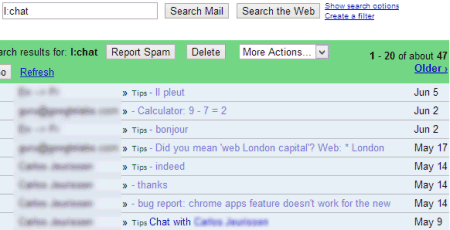
Here are the search results for label:chat in the desktop interface. There are two kinds of results: conversations from Gmail Chat and Hangouts and they have different icons.


The basic HTML results only include Gmail Chat conversations:


Here's the mobile Gmail:


I disabled the conversation view in Gmail's settings to see how this affects Hangouts logs. Each reply was displayed in its own separate message, so a Hangout generated tens of message. Google Hangouts logs are unusable if you disable conservation view.


A very basic feature that worked well ever since Google Talk was launched is now broken: buggy, more limited and less useful.

{ Thanks, Katty. }