Sunday, 6 October 2013

Enable the Updated New Tab Page in Chrome for Android

If you like Chrome's updated new tab page for the desktop and you have an Android device, you can enable a similar new tab page in Chrome Beta for Android.


You first need to install Chrome Beta for Android if you don't have it already, then open a new tab and type this in the address bar:

chrome://flags/#enable-new-ntp

Then press Enter, pick "Enabled" from the drop-down below "Enable the new NTP" and tap "Relaunch Now" at the bottom of the window to restart the browser.


The updated new tab page no longer shows 3 sections. You only get a big Google logo, a search box that points you to the browser's omnibox, a list of the most visited pages and 2 buttons for bookmarks and tabs from other devices. Both buttons open new pages: the bookmarks page has a different interface (it's now a list instead of a grid), while the "other devices" page looks the same.


Chrome's blog informs that some Chrome Beta users might see the new interface automatically. "We've tested this New Tab page with a search bar on desktop and now want to bring the benefits, including a faster load time, to mobile as well. While you can search straight from the Omnibox in Chrome, we realized many users continue to visit their search engine's homepage before searching, so we wanted to make it faster for those users to search. We're always thinking about how to save milliseconds from every search you perform, and we hope this new feature will save you time on-the-go."

If the new interface has been enabled automatically, you can use the same instructions to disable it. Just pick "disabled" instead of "enabled".

The updated new tab page has some advantages: it loads quickly, it's consistent and it looks nice. Unfortunately, bookmarks and the list of tabs from other devices load in separate pages and you can no longer see them automatically when you open a new tab. I created a folder with mobile apps I frequently use and this folder used to be displayed when opening a new tab. This feature is no longer available in the new interface. Unlike the desktop Chrome, the mobile Chrome doesn't support extensions and you can't customize the new tab page.

This "baby" new tab page could be useful to help users discover the omnibox and use it to search the web, but what happens when they realize that the big search box is redundant? And what about the people who already used the omnibox?

Google Promotes Its Search Engine in... Chrome

This is really weird. Google started to show a blue bar at the top of the search results pages: "Get to Google faster. Make Google your default search engine". The funny thing is that I got this message in Chrome.

Chrome used to show a dialog that asked you to pick your favorite search engine when you installed the browser. Now it no longer does this and Google is the default search engine. Anyway, it's likely that Google is the default search engine for most Chrome users.


I clicked "Show me how" and Google sent me to this page with instructions that explained how to change the search provider to Google and how to change the homepage to Google.


Google has similar pages for Firefox, Safari, Opera and Internet Explorer. In most countries, the default search engine for Firefox, Safari and Opera is Google, so it's strange to see this campaign.

Directions Card in Google Search

You don't have to go to Google Maps for driving directions. A simple Google search can provide an answer much faster. Just search for [directions from START_ADDRESS to END_ADDRESS] or [from START_ADDRESS to END_ADDRESS] and you'll get a small map and the distance between the two locations. Expand the card and you'll find the driving directions. This also works in the mobile search interface for both smartphones and tablets.

Here's an example for [from London to Dublin].


Click the big arrow icon to see the driving directions right on the Google search results page:


You can open Google Maps by clicking the map thumbnail. This way, you can find alternate routes, walking directions, transit directions and more.

"These directions are for planning purposes only. You may find that construction projects, traffic, weather, or other events may cause conditions to differ from the map results, and you should plan your route accordingly. You must obey all signs or notices regarding your route," informs Google.

This feature is also useful to find the distance between two places, as well as the driving time in current traffic.

New Google Image Search for Mobile

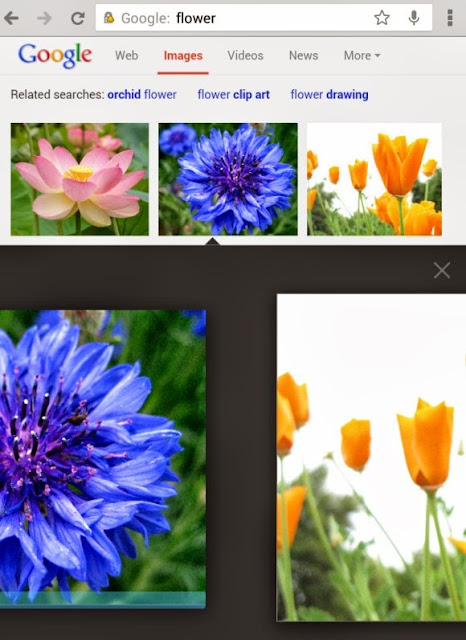
Google's image search engine has a new interface for smartphones and tablets. The new UI looks just like the desktop UI, but you can use swipes to navigate between the image results.

Here are some screenshots from my Nexus 7. When you tap an image result, a black box with a bigger version of the image will open. You can also find some additional information about the image.


Swipe left to see the next image result, swipe right to go to the previous result. Gestures work just like the left/right keyboard shortcuts in the desktop interface. Tap an image to open the page that includes it.


A similar interface is available for smartphones. Here's a screenshot from an iPhone running iOS7:


Google will probably say that it changed the interface to make it more consistent and provide an unified interface for both desktop and mobile devices. There are some other advantages: you can scroll down to see more results, you can scroll up and quickly change the query or switch to web search.

I find the old interface more intuitive and better suited for mobile devices. It made it more obvious that you can use gestures by showing the previous and the next image result, search results didn't move around and you could find more information about the images. The new smartphone interface only displays the domain name and it no longer shows the title of the page and the image size (the tablet interface still shows them). Here's a screenshot of the old UI:

Friday, 4 October 2013

Tips for Google Bar's App Launcher

Google's new navigation menu is useful for visiting some of the most popular Google services, but did you know that you can still use it to find search results? This only works when you use your browser's search box. For example, you can search for [bogota], click the grid icon and select "YouTube". Instead of sending you to YouTube's homepage, Google's menu uses your query and sends you to YouTube's search results page.

Here's a list of services that show search results: YouTube, Play, Maps, Translate, Books, Shopping and Finance. You can middle-click or Ctrl-click the icons to open pages in a new tab.


Unfortunately, this feature is buggy: if you try another query, the links from the drop-down menu send you to the search results for the first query. That's because the feature doesn't work in the AJAX interface.

Useful tip: you can quickly open Google's list of "even more" services by middle-clicking the grid icon. You can also right-click it and select "open link in new tab".

Another tip: instead of clicking "more", you can scroll down.

Fun fact: Google's code includes icons for some other Google services. One of them is Google Reader. Other services: Google Groups, Google Video, Google Image Search, Google Contacts.


Speaking of Google service icons, you can find more icons here.

The Storage Used by Gmail and Google Drive

Now that Google offers unified storage that's shared between Gmail, Google Drive and Google+ Photos, it's more difficult to tell how much storage is used by each service. You can always click "Manage" next to "X GB (Y%) of Z GB used" at the bottom of the page in Gmail and Google Drive, then mouse over the chart.


Google Drive has a new feature that shows more details about your storage without having to open a new page: just mouse over "X GB (Y%) of Z GB used" and you'll see something like this:

10 GB of Free Google Storage for Installing Quickoffice

If you've installed the Quickoffice app for Android or iOS 2 weeks ago, you'll now have 10 GB of free storage for 2 years. Check the Google Storage page, mouse over the chart and look for the "Quickoffice promotion".


You only had to install a free app. You didn't have to buy a Moto X phone (50 GB for 2 years), a regular Chromebook (100 GB for 2 years) or a Chromebook Pixel (1 TB for 3 years). Google Drive's offers for phones and Chromebooks have special pages.

It's funny to see that Google offered free storage for installing an app that used to cost $15-20.

Thursday, 3 October 2013

Add Shortcuts to Web Apps in Chrome for Android

The latest release of Chrome Beta for Android lets you add to the home screen a shortcut to the page you're currently visiting. Until now, you had to bookmark the page, go to the new tab page, long tap the bookmark and select "add to home screen". If you use the latest Chrome Beta, you can open the Chrome menu and tap "add to home screen".

There's even a bonus feature: "Sites launched in this way will open in a normal Chrome for Android window, unless they include the mobile-web-app-capable meta tag. Those sites will instead open in a special fullscreen Chrome for Android window that doesn't display tabs, buttons, menus, or the Omnibox. Try adding a shortcut to weight.aerotwist.com to see this in action."


This is a good news for web apps fans and it's nice to see that a feature that was available in iPhoneOS 1.x finally finds its way to the mobile Chrome. Unfortunately, Chrome for iOS won't add a similar feature because third-party iOS apps can't add shortcuts.

Another new feature integrates Chrome with Google Wallet. "requestAutocomplete() makes it easier for users to fill out online forms by offering web developers programmatic access to the browser's autocomplete information (with the user's explicit permission). For this first release, we've made it work for web payments. On sites with requestAutocomplete(), users will be able to either use their existing payment data stored with the browser or enter new details through a browser-provided interface." This works in Chrome Beta for Android, Windows, and Chrome OS.

Google Now Updates for Notable People

After adding support for reminders about the latest releases from your favorite music artists and actors, Google Now lets you subscribe to updates when you search for notable people. Just click "Keep me updated" in the Knowledge Graph card from Google's search results page and you'll get the latest news articles about that person in Google Now.


Google Now also shows cards for "breaking news and other developing stories you may be interested in", based on your web history.

It's not clear if the new updates feature will replace the reminders feature. Right now, a search for [U2] shows "Remind you about new releases", while a search for [Madonna] shows "Get updates about Madonna".

"Keeping up with the latest information about your favorite musicians, movie stars and other notable people just got easier thanks to the Knowledge Graph and Google Now," informs Google. "Say that you're a Lady Gaga fan and like staying informed about her latest album releases. On the Google Search App, search for [lady gaga]. On the card that pops up, tap 'Remind you about new releases?' and Google Now will keep you updated on your phone or tablet. Similarly, use Google Now to stay in the know about your favorite athletes. For example, search for [colin kaepernick] and tap 'Get updates about Colin Kaepernick' on his card; doing so lets Google Now know that you'd like to receive news. Remember that to use this feature, you'll need to be signed into your Google account on the Google Search App."

Well, I don't see 'Remind you about new releases?' when searching for [Lady Gaga].

YouTube Updates Center-Aligned UI, Adds Carousel

YouTube's experimental interface now uses carousels on the homepage, so it can show more videos from a channel. Video thumbnails are also much bigger. The regular interface also uses carousels, but only when you are signed in.

It's another version of the center-aligned layout, which uses a persistent header, a guide sidebar that's visible only when you click "Guide" and a card-style interface.


Here's how you can enable the experimental feature. If you use Chrome, Firefox, Opera, Safari or Internet Explorer 8+:

1. open youtube.com in a new tab

2. load your browser's developer console:

* Chrome or Opera 15+ - press Ctrl+Shift+J for Windows/Linux/ChromeOS or Command-Option-J for Mac

* Firefox - press Ctrl+Shift+K for Windows/Linux or Command-Option-K for Mac

* Internet Explorer 8+ - press F12 and select the "Console" tab

* Safari 6 - if you haven't enabled the Develop menu, open Preferences from the Safari menu, go to the Advanced tab and check "Show Develop menu in menu bar". Close Preferences and then press Command-Option-C to show the console.

* Opera 12 - press Ctrl+Shift+I for Windows/Linux or Command-Option-I for Mac, then click "Console".

3. paste the following code which changes a YouTube cookie:

document.cookie="VISITOR_INFO1_LIVE=lnq3tYnrDNU; path=/; domain=.youtube.com";window.location.reload();

4. press Enter and close the console.

To go back to the regular interface, use the same instructions, but replace the code from step 3 with this one:

document.cookie="VISITOR_INFO1_LIVE=; path=/; domain=.youtube.com";window.location.reload();

{ Thanks, Rubén and Ramona Brown. }

Google Buys Flutter, Gesture Recognition App

Google acquired Flutter, a startup that built a software that lets you control music and movies with gestures. The desktop software uses your computer's webcam to detect your gestures. "Just put your hand up to stop the media playback, point your thumb right for 'next' and left for 'previous'," reports ArsTechnica.


You can still download the apps for Windows and Mac OS X. The software supports media players like iTunes, Windows Media Player, Winamp, Spotify, VLC, but also sites like YouTube, Netflix and Pandora using a Chrome extension.


Gestures are intuitive, but detection didn't work that well for me.


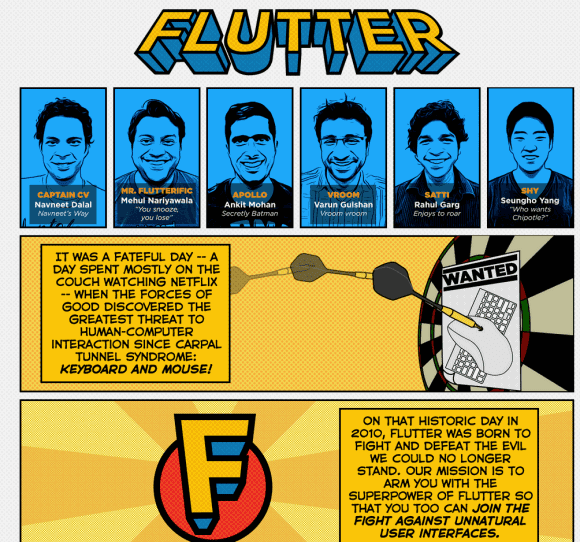
Flutter's comic-style site asks users to join "the fight against unnatural user interfaces".


"When we started three years ago, our dream to build a ubiquitous and power-efficient gesture recognition technology was considered by many as just 'a dream', not a real possibility. Since then, we have strived to build the best machine vision algorithms and a delightful user experience. Today, we are thrilled to announce that we will be continuing our research at Google. We share Google's passion for 10x thinking, and we're excited to add their rocket fuel to our journey," wrote Navneet Dalal, Flutter's CEO.

From touch interfaces, voice-driven user interfaces to gesture recognition, object recognition, facial recognition and biometric scanning, it looks like computers will change dramatically and natural user interfaces will make computers disappear into the background. Xbox Kinect, Google Glass, smartwatches and other wearable computers, flexible screens are probably just the beginning.

{ via ArsTechnica }

Wednesday, 2 October 2013

Restrict Chrome's Omibox Suggestions to Web Searches

What to do if you only want to see web search suggestions in Chrome's omnibox, not suggestions from Google's top results, your bookmarks, your browsing history or previously typed URLs. Type ? in the omnibox and then start typing your query. You can also use these keyboard shortcuts: Ctrl+K or Ctrl+E for Windows and Linux, ⌘-Option-F for Mac.


Chrome will still show suggestions from your previous searches. If you use this trick in the incognito mode, Chrome will only show suggestions from your search history.

Add a Keyboard Shortcut for Chrome's App Launcher

I'm not sure why Chrome's app launcher doesn't have a keyboard shortcut, but it's pretty easy to add one. For Windows XP, right-click the desktop shortcut for Chrome App Launcher and select "Properties", go to the "Shortcut key" field and enter a keyboard shortcut. If you use Windows 7 or 8, press Shift while right-clicking the colorful grid icon from the taskbar, select "Properties", go to the "Shortcut key" field and enter a keyboard shortcut. I picked Ctrl+Shift+A.


Now I can just press Ctrl+Shift+A and the launcher will show up. I can type a Google query, the first letters from a Chrome app or just use the arrow keys to pick an app.


Google now even shows suggestions from the Chrome Web Store, so you can quickly install apps without visiting the store. I wouldn't recommend doing that, unless you really trust the app. For example, you can search for "gmail" and quickly install Gmail Offline.

Google's Hardware Projects: Amazon Best Sellers

Who knew that Google can create successful hardware? Who knew that Chromebooks could become the best selling computers at Amazon.com? Who knew that Nexus devices could become popular?

Electronics best seller - Chromecast


Laptops best seller - Samsung Chromebook


Most popular laptops under $500 - #1: Samsung Chromebook, #3: Acer Chromebook


Most wished for electronics - #1: Chromecast, #6: Samsung Chromebook


Tablets best sellers - #3: Nexus 7


So what are the reasons why Google's hardware projects are suddenly successful? OEM partners like Samsung, Acer and Asus, low prices, high-quality hardware, the focus on user experience, Google Play and the popularity of Chrome and Android.

Google and Brandy: A Sober Mistake

When you search Google for [brandy] or [brandy drinks], you'll get a Knowledge Graph card with information from Wikipedia: "Brandy is a spirit produced by distilling wine. Brandy generally contains 35–60% alcohol by volume and is typically taken as an after-dinner drink." Unfortunately, the photo that illustrates the card is not appropriate: it shows the popular singer Brandy, not the alcoholic beverage.


The photo is from an article about drinks and the caption says: "If this is the first brandy you think of, you need to get out more". Well, this shows that Google's algorithms are far from perfect.

{ Thanks, Sébastien Izouaouen, Sushubh Mittal and Max Kemman. }

Chrome's System-Level Installer, Now Default

When Chrome was released 5 years ago, many people were surprised to see that the browser didn't install in the Program Files folder. Chrome was Windows-only back then and Google wanted to make sure that users can install Chrome, even if they don't use admin accounts. Per-user installs worked well, but Google had to create a separate system-level MSI installer for enterprise.

Now it looks like Chrome has a smart Windows installer that combines both approaches. The setup file tries to install Chrome in the Program Files folder and switches to the AppData folder if it fails.


"We did change the download page to install system-level by default (and fall back to user level if that fails or the user says "no" to the UAC prompt). Installing in AppData was never a security measure, it was for convenience to make sure people could install Chrome even without admin rights. Our data shows that *preferring* a system level (Program Files) install with a fallback to user level improves the install success rate," said Mark Larson from Google.

Apparently, this is a feature launched last year, but I haven't noticed it until today, when I had to reinstall Chrome because of this error: "Update failed (error: 7) An error occurred while checking for updates: This computer already has a more recent version of Google Chrome. If the software is not working, please uninstall Google Chrome and try again."


Chrome's help center still recommends to use an alternate installer "to install Google Chrome for all user accounts on a Windows computer. By doing so, you'll replace all other versions of Chrome that may already be installed on your computer for other user accounts." For Mac, "you can install Chrome for all user accounts on your computer if you're signed in as an administrator."

Google's Reverse Image Search, Now in Chrome

Google's reverse image search feature is about to become more popular, now that you can easily use it in Chrome 30+. You no longer have to install an extension, just right-click an image and click "search Google for this image".

"Search by image allows you to do a reverse image search and discover all sorts of content that's related to a specific image. For example, search using a picture of your favorite band and see search results that might include similar images, webpages about the band, and even sites that include the same picture," explains Google.


It's interesting to notice that Google uploads the image, instead of using the URL. Maybe Google wanted to make sure that you'll always get some results: not all the URLs are publicly accessible (for example: Gmail's image attachments).

Reverse image search also works for modified versions of an image, so you can use it to find more information about an image, other sites that include the image, the original source of an image. You can also use TinEye, a similar reverse image search engine.